Showing posts with label Tally. Show all posts

Monday, December 25, 2017

Tally :- Entry of Fixed Assets

Friends,   I am using Tally Accounting Software since 1996, but not know about entry of Fixed Assets.   There are too many modes of entry, but proper entry is required to get benefit of entry in future. 

Below screenshot help the users to make entry of fixed assets in entry.   Entry should be done as Item Invoice. 

Create a item for which you want to make entry in tally :-


In case above screen is not showing with "At Zero Cost" then  Press F12 and Allow Advanced entries in  Master with Yes.

Secondly in case you are also enable to find Ledger of fixed assets during purchase entry you should  Press F12 in twice  while making purchase invoice and and mark Yes for "Allow expenses/fixed assets for accounting allocations ? ". Screenshot for the same is also given below :-


Benefit of Entry in Proper Manner :-

  1.  Only quantity of fixed assets will be displayed in Stock Summary.
  2. Value of fixed assets will not be displayed in Trading Account.
  3. Stock Quantity of fixed assets can be checked at any time in future. 
  4. No need to pass Physical Voucher for removing Value  & Quantity of Fixed Assets from Balance Sheet.


Saturday, April 1, 2017

Tally.ERP9 :- Change of Financial Year in Tally Accounting Software

Friends,   Today is 1st April 2017, it requires change of Financial Year in all accounting softwares.   Everyone use different Accounting Softwares on the basis of their needs.  Here we are discussing specifically regarding Tally Accounting Software.  I have come to notice that many tally users create New Company for new Financial Year where as there is no need to do such type of creation.  Multiple Financial Years can be handled  in a single company in tally. 

To change Financial Year in tally  Press Alt+F2 from Gateway of Tally and change Financial Year. 
(Picture view is also given below)


Note or Don't :-   Tally users who have just started using tally or not have knowledge regarding change of Financial Year may Loss their tally Data of Last Financial Year or Earlier through using this option.  "Financial Year begins From"  and "Books beginning From"  at the time of company creation or alteration of company is One Time option for creating Company only.  This option should not be used for change in  Financial Year.  Image of the same is also given below :-


Other Important tips regarding Tally (Click Here)

Saturday, November 15, 2014

Tally :- Accounting Software with Payroll Management Software

Enjoy the Benefits of
             an Integrated Payroll management software!


Tally.ERP 9 delivers integrated Payroll management software with all the necessary Payroll compliances built in. The Payroll management feature handles simple Payslip generation right up to complex allied processes including Loans and Advances, Salary revision and Arrears calculation, Deductions and ad-hoc payments etc.

Tally.ERP 9 intergrated Payroll management software also covers a wide range of functions including:

• Create and maintain the employee database viz. contact/personal/bank account/statutory details etc., expat details like passport, Visa and work permit

• Employee group or department wise categorisation

• Attendance, overtime, leave or production details

• Multiple salary structures for different groups of employees for example, department-wise salary structures and processing

• Support Salary revision and arrears calculation both as prospective and retrospective change

• Tracking of loans and advance paid to employees and defining multiple criteria for recovery of such advances (single or multiple installments from the employee's salary)

• Complete support to implement Provident Fund and Employee Insurance Schemes along with Professional Tax calculation

• Supports Gratuity as per the specified criteria
Benefits of using Tally.ERP 9 intergrated Payroll management software

• Time spent on processing salaries and paper work can be reduced to a great extent

• Accurate and timely salary processing

• Salary calculation against employee attendance is much easier

• Generate the Payment Advice to instruct the bank for salary payment

• Payslips can be printed, exported to Excel or emailed to the respective employees

• All payroll-related reports can be generated with the click of a button.

• Above all, the Payroll feature is completely integrated with Accounts
The new Payroll Feature provides the following Statutory Reports:

• Employees Provident Fund Computation & Support:

       • PF deduction & contribution monthly statement
       • PF Combined Challan
       • Form 5
       • Form 10
       • Form 12A
       • Form 3A
       • Form 6A etc.

• ESI Computation & Support:

       • ESI deduction & contribution monthly statement
       • Payment Challan
       • Form 3
       • Form 5
       • Form 6 etc.

• Professional Tax computation for all the states with the following reports

       • PT Computation Report
       • PT Monthly Report...


h t t p : / / w w w . t a l l y s o l u t i o n s . c o m /

Thursday, May 9, 2013

Tally :- Auto Bifurcation of Sales and Vat

Friends,   Vouchers posting in tally is easy and simple.  But tally developers work day by day to make more easy in the interest of users.   A program which keeps problem of users, becomes familiar in market.   Tally accounting software takes care about it.  

               A business man sales their items to customers including vat etc.   Now as per act  there is two categories of Invoices.  First if Tax Invoice and Second is Retail Invoice.   Tax Invoice is raised vat dealer to vat dealer and Retail Invoice is raised Vat Dealer to Retailer or Consumer.   It means Tax Invoice allow to buyer to take benefit of Vat charged in invoice and Retail Invoice do not allow to buyer to take benefit of Vat. 

                Now in tally entry of Tax Invoice can be easily done through voucher class and entry of Retail Invoice (vat not shown separate already including in rates)  is required some knowledge.  Example for the same is given as under. 

Retail Invoice Amount  =  1131.25
Detail of Rs. 1131.25 is Sales 12.50%                                 Rs. 1000.00
                                    Output Vat 12.50%                        Rs.    125.00
                                    Surcharge 5% on Output Vat        Rs.        6.25
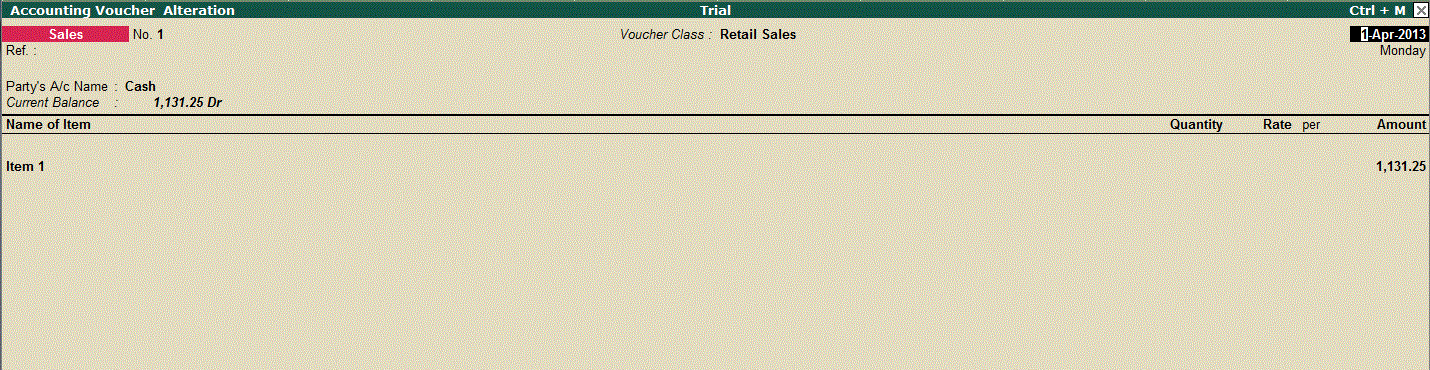
User wants to enter only Rs. 1131.20 in tally and tally will pass automatically vouchers posting in all ledgers of Rs. 1000,Rs. 125 or Rs. 6.25 as shown above.


Picture No. 1

Picture No. 2

Picture No. 3

Picture No. 4


Setting of Auto Bifurcation of Sales and Vat 

  • Create Three ledger Sales 12.50 %, Output Vat 12.50% and Surcharge 5% on Output Vat normally under head Sales and Duties and Tax taking proper Vat Classes.
  • while creating item, Press F12 and select Yes for Specify Default Ledger Allocation of Invoicing as shown in picture no. 1.
  • Now, Set/Modify Default Ledgers for Invoicing in Item as shown in second picture as Default Accounting Allocations for Sales Invoice as shown in Picture No. 2.  
  • From Gateway of Tally, Account, Voucher Type, Alter Sales and type Retail Sales under Name of Class as shown in third picture and set values of Class as shown in Picture No. 3 & 4.
  • Now, pass voucher using Retail Sale voucher Class of Rs. 1131.25, all amounts will be automatically posted in respective ledgers as shown in Picture No. 5 
  • for checking of amounts in ledger, check Vat computation as shown in Picture No. 6


    Picture No. 5

Picture No. 6


Tuesday, May 7, 2013

Tally:- How to upload logo in tally.

Do you know that logo can be uploaded in tally.   Importance of logo stands value for a unit.   Before knowing regarding upload of logo in tally.   It is important to know how can I collect it.  There are many sources of generation of logo.   Easy and simple way is that availability of logo in your computer.  

How can I generate logo through computer :-   If we want to generate logo of Shri Ganesh Ji, you may use the following steps :-
  • Open through internet www.google.co.in.
  • Press Images button available in left-top.
  • Type Shri Ganesh Ji
  • Images of Shri Ganesh Ji will be displayed.
  • Choose image as per your choice and Press Print Screen Button. 
  • Open paint brush and Press Paste Button. 
  • Now select particular picture which you want to create logo and use cut button and paste in new file in paint brush. 
  • Save the file in the name Ganesh.jpeg format on desktop or in tally folder  or in folder  C:\Tally.ERP9\. 
  • Now open tally. 
  • Press F11 from gateway of tally. 
  • Accounting Features >set "Enable company logo" = Yes.
  • Type path of image file of Shri Ganesh ji (already created above) as shown in below picture. 


Recommended size of image is 96 pixels in width X 80 pixels in height
and Company logo will be printed on specific reports and vouchers only


Monday, May 6, 2013

Tally :-CTR+C, CTR+V in Tally

Friends,   There are many shortcut keys in tally which are also available in Help menu of Tally.  Some keys   out of shortcut keys users use in general.  But some keys feel that they are extra.    Recently i have come to know that we can use CTR+C or CTR+V command in tally which are not available in help menu of Tally.   No doubt that these keys (CTR+C or CTR+V) are window based, but the same key with the help of ALT can be used in Tally.  I mean to say that  data available in EXCEL/other field can be copied in Tally with using CTR+ALT+V.   Example for the same is given below :-

Window’s command
Tally’s command
Ctr+c
Ctr+alt+c
Ctr+v
Ctr+alt+v


The above commands can be used vice-versa from tally to excel or excel to tally. 


Saturday, March 30, 2013

Tally :- Change of Financial Year in Tally accounting software

Friends,   Today is 30th March, 2013 and end of Financial Year is too much near. it requires change of Financial Year in all accounting software.  I have come to notice that many tally users create New Company for new Financial Year whereas there is no need to do such type of creation.  Multiple data of  Financial Years can be stores in a single company in tally.

          Last year I had received some queries regarding loss of data due to change of financial year.  Therefore it is very much important to know how to create new financial year in Tally software.  Generally users think that "Financial From " or "Books beginning from"  are the  options to change financial year which is wrong.   Anyone should not change screen of  "Gateway of Tally" to change the Financial Year in tally as shown in below picture. 

To change Financial Year in tally  First take backup of your all data and then Press Alt+F2 from Gateway of Tally and change Financial Year. 
(Picture view is also given below)


Other Important tips regarding Tally (Click Here)

Thursday, October 4, 2012

Tally :- Import Excel Data in Tally

Friends,
                    As per commitment, in the first week of October, 2012 , utility for import data from Excel will be provided. In the first attempt, utility named T7Import is being providing to import purchase vouchers in Tally 7.2 through Microsoft excel 2003. 

How to Install
                    To make easy, there is T7Import.exe file in zip format. Place T7Import file in C drive and click installation will be start automatically. 
Excel Format
              To enter vouchers in excel, specific excel based template  name Pur_Temp.xls_is available in  folder T7Import.  However you may also generate yourself with the help of following format. 
Field Name            BNO         DATE     AMOUNT       PARTYNAME        REFERENCE
Type                       "C"              "C"            "N"                "C"                           "C"

Note :-  "C"  stands for Character
             "N"  stands for Numeric.
                     After entering data in excel, file will be stored in the name Data.dbf in DBF4(dBASE iv) (*.dbf)  as shown in below picture.  File should  be stored in  folder \T7Import. 

Cost of Software 
                 Initially, there  is no cost of this utility but 10 free attempts for one computer is available as trial. However there is no limit of data entry in excel or import vouchers in Tally. 

Modification  in Utility
                   Modification in utility will be done time to time  at www.TdsTaxIndia.com.  User should stay in touch with www.TdsTaxIndia.com.

How to Solve utility Problems
                    In case any difficulty in running this utility, user can contact through email  at easyjain@gmail.com.  Problem will be resolved as soon as possible and updated in utility.

Availability of Utility (T7Import)
                    Simply click here (download) to download the utility and run the same in Microsoft office Excel 2003 and Tally 7.2.


Wednesday, September 26, 2012

Tally :- Excel to Tally

Friends,

               It is general requirement of Tally users to import Data from Excel.  First of all, purchase vouchers will be transferred from Excel to Tally.  This utility will import purchase vouchers in Tally with in seconds.   Many times we found that there are similar vouchers with change of Date, Bill No. and  Amounts  are to be posted in Tally like as a distributor or a dealer of a company. 

Work of Import from excel is near to complete which will make easy entries of Purchase vouchers in tally.  I think either in the last days of September or in the first week of the October, this utility will be available for registered users of this site of  tally users. 

Friday, April 6, 2012

Tally :- e-Banking through Tally with Standard Chartered Bank

Friends,   In day to day updation,  now tally(accounting software) is providing e-banking facility in tally.   Really tally is not only accounting software, it makes easy life.  


Features of e-Banking in Tally.ERP 9
1. Supports different payment modes
 Cheque
 Inter Bank Transfer (NEFT - National Electronic Funds Transfer)
 Same Bank Transfers
 Electronic Cheque
 Electronic DD/PO
 Others
 It provides the facility to Approve payments before exporting vouchers
 It allows to Export Payment instructions on Payment Voucher Creation or from e-Payments report.
 It supports to Export Payment Instructions in Encrypted format
 You can set the common location for Export of Payment Instruction(s)
 It comes with the capability to reset the status of Approved /Exported vouchers on transaction alteration.
 It allows to Export the Approved Transactions with a click of a button
 It enables to View and Import Bank Statement for Bank Reconciliation
 Allows to import the Intermediate Files (IMF) to update cheque number and date for e-Cheque transactions
 It provides the Facility to Reset the Status of Approved/ Exported Vouchers
 It comes with in-built error finding mechanism, to ensure the export of accurate vouchers
 For better tracking of e-payment transactions, Warnings are displayed in e-Payments report
 It allows to import Payees Bank Details maintained in Excel.


Sunday, April 1, 2012

Change of Financial Year in Tally

Friends,   Today is 1st April, it requires change of Financial Year in all accounting software.  I have come to notice that many tally users create New Company for new Financial Year where as there is no need to do such type of creation.  Multiple data of  Financial Years can be stores in a single company in tally. 

To change Financial Year in tally  Press Alt+F2 from Gateway of Tally and change Financial Year. 
(Picture view is also given below)


Other Important tips regarding Tally (Click Here)

Sunday, March 18, 2012

Tally- How to add 12% Excise Duty in Tally.ERP9

Friends,   In Union Budget 2012, Basic Central Excise Duty has been increased from 10% to 12%.  Now, in Tally Accounting Software needs to change Excise Duty rate to 12% w.e.f. 17-03-2012.   If you have two or three items for invoicing, you can change excise duty rate manually in each item.   But if you have 100 or more items, it is difficult to change excise duty rate manually in each item.  Tally has already provided solution for this.  Just change excise duty rate in one item and copy all other items with particular one item in which you have changed excise duty rate. 
Steps to change Excise Duty Rate for a Single Stock Item :-
Go to Gateway of Tally > Inventory Info. > Stock Item > Alter
  • In the stock Item Alteration screen, Tab down to the option Set/Alter Excise Details to Yes.
  • In the Excise Details screen, set the option Set/Alter Duty Details to Yes
  • In the Excise Duty Details  screen,  for  the  Type  of  Duty  - Basic Excise Duty add the new
    Applicable From Date as 17-3-2012 and Rate of Duty as 12%. 
Steps to change Excise Duty Rate in Multiple Stock Items:-
Excise Duty Rate of multiple Stock Items can be updated by updating the rate for a single Stock 
Item and copying the same to Multiple Stock Items.

Go to Gateway of Tally > Inventory Info. > Update Excise Info. > Rate of Duty

 Set Excise Duty Rate sub-screen appears.
  • In the Copy From field select the Stock Item whose excise duty rate has been updated.
  • Destination type  can be selected as either Stock groups, Stock Items or Tariff Classifications as per your requirement. 
  • In the Copy To field select All Item to effect the duty rate change on all stock items.
  • Press Enter to view Excise Duty Details. This screen displays the excise duty details set for the Stock Item which will be copied to the rest of the items. Press Enter to proceed to set excise duty.
For getting detailed procedure on changing the Excise Duty Rate (Click Here)

Thursday, October 6, 2011

Haryana Vat Form R-1 in Excel

Friends,   Excel format of any forms is important who want to edit any thing in form.   With the help of excel, many fields calculates value automatically only one time setting is required.  Keeping in view these features, Vat R-1 return form is ready for general use.

Download Vat -R1 Return form in Excel format (Click Here)

All Other LS or LP Forms in Excel Fromat (Click Here)

All Haryana Vat Forms in PDF format (Click Here)

Haryana Vat C-4 in Excel Format (Click Here)

In case, anyone is required any other important vat form  in Excel of other Indian State, the same  can be exported through Tally.ERP9 accounting software.  All Vat Forms of All States are available in Tally.ERP9 latest programme.

Tuesday, October 4, 2011

Tally: Multiple Emails in One Go. or Mass Emails to their Customers

Did you know that you could send various reports and Pay Slips to multiple recipients right from your Tally.ERP 9 system? Communicating with hundreds of your business partners or customers and sending out individual Confirmation of accounts, Outstanding Reminder Letters and Pay Slips to thousands of partners, customers and employees can’t get any simpler than this.

Sending across business reports usually requires exporting the report, converting it to a suitable format and finally sending it out. And there are hardly any one-stop solutions or any one application that can do all these without minimizing user’s intervention. The process becomes more time consuming when users have to send individual reports to each customer or party. In Tally.ERP 9 though, the powerful mass E-mailing feature enables users to send reports to multiple recipients directly from a single screen with minimal steps. This also means that, Tally.ERP 9 acts as your E-mail client which removes the need for a dedicated E-mail program. 

Mass E-mailing in Tally.ERP 9 is available for four types of reports – Outstanding Statements, Reminder Letters, Confirmation of Accounts and Pay Slips. Note: Normal E-mail Configuration needs to be completed first to use mass E-mailing function.


To read  Complete  content click here

Tuesday, September 20, 2011

Compare Two or More Years Data In Tally

To compare two years data in a single screen, Tally provide this facility in general.   To open two years or more years data in a single screen,  open your tally  Trial Balance/Profit and Loss Account/Balance Sheet , Now press Alt+C the following screen will be appeared.  You can enter dates for the period (From and To ) you want to open in a single company (as shown in below picture).

In above picture  From and To dates can be changed and new picture alongwith current data and data of  selected period after pressing Alt+C will be appeared in a single screen.  It is very much helpful while finalising the balance sheet.  The screen will be appeared as under


The above screen is showing two year data of a single company.

Two Separate Company and Separate Data   Comparision 
                                         Yes, it can be done,in case data is lying in two separate company and we want to compare for the same.  No problem, it can also be done. In gateway of tally, Open two or all companies which data is to be compared.   Keep in mind ,  before opening/comparing data, all company should be  open . It is already explained in earlier posts , how to open two companies at Gateway of Tally. 
                                             Open Trial Balance or Profit and Loss Account or Balance Sheet, then press button Alt+C.   In this case , first company name will be asked , you can change company name, as shown in below picture. 

  In this way two year data of separate companies can be compared easily.  In any case you feel any problem , you may ask question via e-mail at easyjain@gmail.com


Thursday, September 1, 2011

Tally-Non Trading Accounts "Bill by Bill"

Friends,   Do you know that Tally.Erp9 provides bill by bill  details in Non-Trading Accounts.    Sundry Debtors and Sundry Creditors are already in position to work as Bill by Bill.  The following screen will be helpful to under stand this position. 
Yes, after above setting as shown in picture, Any Expenditure/Income/Assets/Liability  account whether relates to Trading, Profit and Loss Account or Balance Sheet can be set as Bill by Bill.  The following picture shows that Bank Charges account entries are showing bill by bill. 

By default, Tally.ERP9 allows the user to maintain bill wise details only for Trading Accounts such as Sundry Debtors and Sundry Creditors.  You can also enable bill wise Details for Non-Trading Accounts other than Cash-in Hand, Bank Accounts, Bank OD, Bank OCC A/c and Stock in Trade. 


Friday, July 29, 2011

Tally- Use of Select All button

Friends,   To break yearly data , tally has provided a button of SPLIT COMPANY.  But sometime due to any reason, it does not work.   In such condition alternative option is required.   With the help of Export and Import option, data can be diverted on yearly basis.  Export and Import feature requires some extra knowledge, but Select All option is too much simple to break yearly Data.

(Before taking any step in this regard, don't forget to take backup of your complete Tally Data in C.D. or Pen Drive etc. )


Availability of Option
     Select and Select All with other options are available on pressing display > Daybook from Gateway of Tally.

How can  Select All in break Data
     First of all save data in duplicate or in triplicate for safety of data and then open Day Book, Press Alt+F2 and change period for which you want to delete vouchers. Press Select All and in last Press Delete.   All vouchers will be deleted in one go.  There is no need to delete one by one voucher.  For More clarity example is given as under :-
  1. This function is not available in Tally 4.5, 5.4, 6.3 etc. 
  2. Now, You have tally data in Tally.ERP9 for the period 01.04.09 to 31.03.2011 and you want to split data for the period mentioned below:-
             01.04.2009 to 31.03.2010
    and   01.04.2010 to 31.03.2011
  3. First important step is to take backup of your complete tally data in C.D. or another storage drive like Pen Drive etc. 
  4. Now copy of your data folder data\0001 in another folder data\0002.  with same data.
  5. Open your data while using folder 0001 and select day book for the period 01.04.2010 to 31.03.2011 and delete all vouchers as explained above using Select All option.
  6. Now close company of 0001 and open 0002 and select day book for the period 01.04.2009 to 31.03.2010 and click on Select All and press delete. 
  7. In this way two companies will be available in your computer and can be used on yearly basis. 


Monday, June 6, 2011

Tally- Problem due to "Auto Backup" facility

No doubt that the Auto Backup facility is excellent in Tally.ERP9.  It takes data backup in silent mode. Users are free regarding backup of Tally Data.  Just set ENABLE AUTO BACKUP to YES as shown in below picture. 

Gateway to Tally > Alt+F3 > Alter Company
Restore Command of Auto Backup = Control+Alt+K and Now Select Company with Date and Time for restoration.

Problem Due to Auto Backup
         If you are using Auto Backup facility in tally, there is chance that volume of your Tally Data may be increased in G.B.  Yes, not in M.B. but in G.B.   I had checked that my computer drive (c)  was showing short space in drive.  Then I try to trace the problem and found that My Tally Data Folder space size was 3G.B.   I was surprised to know that I had only done work for 2 months and data is showing 3G.B.   There were 20 auto back of my Company Data in a single file.   After that  I fixed "No" in Enable Auto Backup feature and removed old auto Backup Files.   Now my data volume was normal (only in 5 or 6  m.b. ). 

Thursday, April 21, 2011

Tally, Free Software > Outstanding List with Partywise Total


Friends, 
         A software on exported data from Tallyerp9 has been created.  There is no cost of this software.  It is totally free.   This software is helpful to those who use tally and pass their entries bill by bill and adjust payments "Agst Ref".   Bill by bill detail is available but partywise total outstanding amount is not available in default tally.  Index can be done with the help of F12 while using sorting on Alphabetic by names.  
Display > Statement of Accounts > Outstanding > Receivable 
With the help of above path a screen will be displayed , to export the data, Press Alt+E and select Ascii Format and output file name C:\t.txt as shown in below picture. 


How to use Software
  • Download Software and unzip
  • Place in C:\debtor
  • Place exported file t.txt from tally in C drive as c:\t.txt
  • Run debtor.exe file available in c:\debtor\debtor.exe
  • Wordpad will open using t.txt file.  
  • Save file using "Save as Type " as text document and close wordpad.
  • Output data will be available in Wordpad automatically. 


Download Software (Click Here)
Developed by www.tdstaxindia.com

Thursday, March 31, 2011

Solution of Printing Problem in Tally

Friends,  Yesterday I was surprised to know that a tally user was unable to print from Tally.  He has tried many times to get a print from tally but fail.  Initially I had told him to check the proper printer wire connection and confirm.   But surprise that there was no problem regarding connection of cable etc.  Then I take personal visit and found that  he is using Laser/Ink Jet Printer or Printer based upon USB.    The following screen solve such type of problem. 
On pressing Alt+P, Print Format is available in right hand side which can be viewed in above picture.  Types of Print Format is also given as under :-
  • Dot Matrix Format   (Printing goes on LPT)
  • Neat Mode.             (Printing goes on USB)
  • Quick /Draft             (Printing goes on LPT)
Finally, it was found that default setting of the said user was "Quick/Draft" in Tally  and as he pressed Alt+P for printing of  any report, all printing was  going on LPT whereas he had connected USB printer.   In last I have changed Print Format to Neat Mode and found that there was no problem in Printing from Tally. 

Intense Debate Comments