Showing posts with label Excel. Show all posts

Thursday, December 26, 2013

Income Tax :- Free Income Tax Individual Calculator

Friends,   In a organisation,  Excel Based Income Tax Calculator is required to calculate Income Tax of their each employee.   Before completing the financial year,  tax calculation is  required again and again due to saving of employees and receipt of arrears etc.  Keeping in view these things the following excel based calculator is provided totally free of cost.  In the following not only Tax Calculator but also calculator for calculating 89(1) relief for arrears is also provided. 

  • F.Y.2013-14, A.Y.2014-15 Income Tax Calculator with New Form 16 for individuals  (Download)

Tuesday, April 2, 2013

How to replace Blank fields with Zero in Excel

Friends,   Many times we feel that zero is required in blank field in excel.   Blank fields are not accepted in software like as  while creating Tds return with NSDL software, if there is any blank field, software shows error.  In such case you have only two options, one is manual and second is with command.  Till today I was also using manual option, today I feel why it should not be done through command which will be simple and accurate.

Command = Select Area (as shown in First picture) > Press "Control+F"  and select "Replace" as shown in Second picture > use Replace All. 


In this way replacement of Blank fields with Zero is too much simple. 

Note :-  In complete blank sheet, above command will not work.  Some digit like Last cell in the selected area should be typed before applying this command.  

Sunday, March 3, 2013

Age Calculator or How to Know Your Age in Excel

Friends
Age Calculator 

             To know or calculate your age in excel, some commands are required.  Generally, it is not easy to calculate through excel.  But with the help of below commands it is too much easy.   Before knowing complete formula for calculating Age, some commands are explained as under :
  • Now()           = Today date
  • Today()         =  Current Date
  • Datedif          =  Date Difference between two dates
  • "Y"                =  Years
  • "YM"            =  Balance numbers of Months after completing Years
  • "MD"            =  Balance numbers of Days after completing Months. 
  • Command     =           =datedif(lowerdate,highestdate, "intervel")
  

You can also enter your date of birth in age calculator and check your Age.

Keep in mind that You should be Registered members of this blog before it's downloading.

Download Age Calculator (Click Here) only for Registered members

Wednesday, January 30, 2013

Income Tax Calculation formulas in Excel

Friends,   How to calculate income tax in excel.   No doubt there are lot of tax calculator available in market.   But there is no detail  how they have calculated the same.   Many time we feel requirement of income tax calculation in excel.  The said formula calculates Income Tax  of  man, women,  senior citizen and very senior citizen for assessment year 2013-14.  Picture view with detailed formula's is given below :-


The above calculations are simple and can be used through copy and paste etc.   The above sheet is available in two part i.e. one is shown in green colour for used of user and second is shown in white colour which is only for calculation not for end use.   Date of above picture is also given below for easy reading otherwise picture can be enlarged to view to formula's 


Column A                                                           Column B     
Income Tax Calculator 
for Financial Year 2012-13 or assessment Year 2013-14
Taxable Income
1) Income from Salary Head 1500000
2) Income from Business & Profession 0
3) Income from House Property 0
4) Income from Capital Gain 0
5) Income from Other Sources
Total Taxable Income  =SUM(B5:B9)
for Man / Women (Amount in Rs.)
  Income Tax  =$K$14
  Education Cess  2% =+B13*0.02
  Secondary Higher Education Cess 1% =+B13*0.01
         Total Income Tax =SUM(B13:B15)
for Senior Citizen => 60 .and. < 80 years (Amount in Rs.)
  Income Tax  =$K$21
  Education Cess  2% =+B19*0.02
  Secondary Higher Education Cess 1% =+B19*0.01
         Total Income Tax =SUM(B19:B21)
for vary Senior Citizen => 80 years (Amount in Rs.)
  Income Tax  =$K$28
  Education Cess  2% =+B25*0.02
  Secondary Higher Education Cess 1% =+B25*0.01
         Total Income Tax =SUM(B25:B27)
Column H Column I            Column J                                           Column K
Tax Slabs Rate Bifurcation of Income Income Tax
200000 0 =IF($B$10 >= H10,H10,$B$10) =+J10*0
500000 10 =IF($B$10 >= H11,300000,MAX($B$10-H10,0)) =+J11*0.1
1000000 20 =IF($B$10 >=H12,500000,MAX(($B$10-500000),0)) =+J12*0.2
> 1000000 30 =IF($B$10 >H12,MAX($B$10-H12,0),0) =+J13*0.3
=$B$10 =SUM(K10:K13)
Tax Slabs Rate Bifurcation of Income Income Tax
250000 0 =IF($B$10 >= H17,H17,$B$10) =+J17*0
500000 10 =IF($B$10 >= H18,250000,MAX($B$10-H17,0)) =+J18*0.1
1000000 20 =IF($B$10 >=H19,500000,MAX($B$10-500000,0)) =+J19*0.2
> 1000000 30 =IF($B$10 >H19,MAX($B$10-H19,0),0) =+J20*0.3
=$B$10 =SUM(K17:K20)
Tax Slabs Rate Bifurcation of Income Income Tax
500000 0 =IF($B$10 >= 500000,H24,$B$10) =+J24*0
1000000 20 =IF($B$10 >=H25,500000,MAX($B$10-500000,0)) =+J25*0.2
> 1000000 30 =IF($B$10 >H25,MAX($B$10-H25,0),0) =+J26*0.3
=$B$10 =SUM(K24:K27)

Tuesday, March 27, 2012

How to convert .rpt files to .xls

Friends,   It is great problem when we need .rpt files in .xls.  Sometime back I had received .rpt files from Punjab National Bank as Bank Account Statements for a particular account.  I had tried to convert in excel, but after devoting 4 hours, I got fail in conversion. 

             In last I tried following steps and got success. 

  1. Open .rpt file in Notepad.
  2. File Save as in .txt file (as shown in above picture)
  3. Open with  .txt file in Microsoft Excel.
  4. Option "Text to Coloumns" > Fixed >Finish. 
  5. then Save File in excel. 


Saturday, January 21, 2012

Income Tax Calculator for Financial Year 2011-12 (Assessment Year 2012-13)

Friend,
Latest Income Tax Calculation in Excel 
As per finance Bill 2011, Income Tax Calculator in excel sheet for the Financial Year 2011-12 or Assessment Year 2012-13  is ready.  Employee wise data can be stored in it.  Mainly this file is much helpful at the time of e-filing of annual return of salary data or to make provision for advance tax for the Financial Year 2011-12.


Free Excel Based Income Tax Calculator w.e.f. April 1, 2005 to up to Date (Click Here)
To view on line Income Tax Calculator for the F.Y. 2010-11 (click here)
Click Here to Download excel Sheet for F.Y. 2011-12 with New Format of Form 16
Click Here to Download excel Sheet for F.Y. 2012-13 with New Format of Form 16 

Wednesday, October 26, 2011

Income Tax calculation for Senior Citizen updated in Excel Based Calculator

Income Tax calculation for Senior Citizen for the Financial Year 2011-12 or Assessment Year 2012-13 having Age => 60 and < 80  and having Age =>80 has been updated in Excel Based Calculator.   Earlier there was only facility to select Senior Citizen without Age.  Now, age factor has also been added.   Picture view of addition in Excel Based Income Tax Calculator is given as under :-
To download the above utility, Click  here and download the same.

Latest Income Tax Rates/Slabs  (Click Here)

Tuesday, September 20, 2011

Excel :- Automatic Options

        I do not know that Excel Automatic Calculation  problem has been faced by you or not.   But i have faced this problem in Microsoft Excel which i want to share with you.  This problem arise when you have fixed formula's in Excel for your fast or accurate working and Calculation of formula does not work.   In below picture, a calculation has been shown for 15 x 3 = 45 (right) and 15x 15 = 45 (wrong).  These all depends upon the setting of Advanced Options  as shown in below picture in Microsoft Excel 2007.  Due to any reason, if you have selected Manual of Advanced Options, Excel stops automatic calculations. 


(care is required while working in Excel)

Saturday, July 9, 2011

Latest/New Release of Excel Based Return Preparation Utility

Friends,  Latest /New releases of excel based Income Tax Return preparation utilities have been updated.  No doubt that the Version of all Income Tax Return forms like ITR-1 (SAHAJ),ITR-2,ITR-3,ITR-4, ITR-4 (SUGAM), ITR-5,ITR6 are same i.e. Version 1, but release of all forms have been changed/updated  resolving minor problems received  on day to day basis. 

We have also tried to place important links on a single page like as How to know Income Tax Ward/Circle , Know your Jurisdiction, Know your Pan, e-payments, Important Codes for e-filing, Income Tax Calculator, Due Dates of filing of Income Tax Returns, Login Page for e-filing of Income Tax Retun,Notification for Exemptions for filing of Income Tax Return having Income up to 5Lacs etc.

To download the Latest Releases for Assessment Year 2011-12 or earlier Click Here 

Thursday, February 10, 2011

Excel Based Income Tax Calculator for Financial Year 2010-11 (Assessment Year 2011-12)

Friends,
This Utility is totally free for calculation of Income Tax on income of the Financial Year  2010-11 or Assessment Year 2011-12.  

        Some new features in new excel storage based income tax calculator for the Financial Year 2010-11 or Assessment Year 2011-12 is available below.  In the below calculator, data of 500 employees can be stored by default and on using copy and paste function  data of 65000 employees can be stored.
To view the same utility for the Financial Year 2011-12 (click here)

Tuesday, February 8, 2011

Large and Small Command in Excel

Many times we feel that commands can not be remembered when they are in numbers.  Therefore I am explaining one by one microsoft excel command which are required on day to day basis.
While viewing above picture, it can be observed that some numeric figures are lying in A column.   Commands are lying in D column and Result is available on C column.   Data in A column may be unsorted.  Large and Small command search data as per requirement of user.  These command are quit different from Maximum and Minimum commands.   Max and Min command can find only maximum or minimum.  Where as Large and Small command can search a series of data as available in above picture.  

Sunday, January 30, 2011

Indian Comma Format in Excel


Friends,
By default in Microsoft Excel has no feature regarding Indian Comma while entry any numeric value in excel.  Excel shows value of Rs. 115515.00 as under :-

By default comma   shows      115,515.00
Indian Format for Comma   = 1,15,515.00

To take indian format in Excel, the following codes are entered in format as shown in below picture.

Open Excel >Select Column (as D in picture) > right click >Number >Custom > Type (paste below codes here) >OK 

Code :- for Indian Format

  [>9999999]##\,##\,##\,##0.00;[>99999]##\,##\,##0.00;##,##00


[>9999999]##\,##\,##\,##0.00;[>99999]##\,##\,##0.00;##,##0.00


Saturday, December 25, 2010

How to save Tally Data in Excel

Friends,
Tally Data in Excel
             Tally provides data or many reports in excel.  New version of  Tally9 and Tallyerp provide excel facility in tally by default.  But before this version in Tally 5.4, Tally 6.3 or in Tally 7.2 (except Tally 4.5), there was a trick to use tally data/reports in Excel.  Tally has many reports which can be used in excel.  Name of  some reports are given as under:
  • List of Accounts
  • Vouchers
  • Day Book
  • Trial Balance
  • Profit & Loss Account
  • Balance Sheet
  • List of Sundry Debtors
  • List of Sundry Credits
  • List of Bank Loans
  • List of Unsecured Loans
  • Sales Register
  • Purchase Register
  • Journal Register
  • Columner report
  • Ledger Account
  • Stock Register
  • Group Summary
  • Movement Analysis
  • Ageing Analysis
  • Physical Stock Register
  • and Other so many reports.
Trick to use Tally Data/Report in Excel 
             Open your report in tally which you want to use in Excel. Export function will help you. There are so many formats in Tally  like as HTML(Web Publishing) ,SDF(Fixed Width), XML (Data Interchange) and ASCII (Comma Delimited). For selecting one  Press Alt+E and set below values :
Format                        :  ASCII (Comma Delimited)
Output File Name      :  tally.csv  
             Extension code of output file name should be CSV(Comma Separater Value) as shown in below image:-


In this way Tally.csv file can be generated. It will available in your computer in Tally folder.  Clink on this file, it will be opened in Excel.  Now use Save As button to save the file in Excel and use as your desire.


Thursday, December 16, 2010

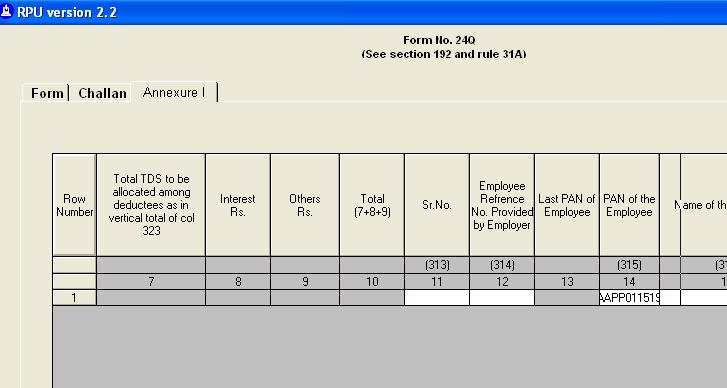
How to View Complete PAN Number in NSDL Software

Friends,  By default, PAN numbers in NSDL software do not display in complete which can be seen in below picture. It is very much clear that first character and last character of PAN can not be read.


Line of any column like as "PAN of  the Employee"  or other can be dragged as shown in below picture. Vertical lines of Header starting with Row Number can be dragged as shown in below picture.  


It can be observed that after dragging PAN number is very much clear in below picture.   Complete characters of PAN can be read in below picture. Nothing has been disturbed  in digits of PAN number.

Friday, December 10, 2010

How to Drag (घसीटना) in Excel

Initially,  it is necessary to know regarding what is drag (घसीटना) while using Microsoft Excel and what is its use. Drag is used in excel with the help of mouse or keys for example if you have typed 1 and 2 in excel and now you want to drag (घसीटना) it up to 20 numbers.  There is no need to type 3,4,5,6,7,8,9 etc.  It can be easily dragged as shown in below picture.
No doubt that above function if too much easy but important for those who are not using it .   It makes work easy in Microsoft Excel.
Secondly , many times we see that drag function do not work in excel.  We feel that some file of Excel has been corrupted and we uninstall Microsoft Excel and re-install the same.  After that Drag function will work again normally.  I have also done like this but now found that this problem was occurred due to virus and can be solved without un-installing the Excel.
For  Microsoft Office  2003 or up to Microsoft Office 2003 users
         Tool >Option > Edit > Allow Cell Drag and Drop (As shown in below Picture) 

For  Microsoft Office  2007 or upper version of Microsoft Office 2007 users
Menu > Excel Options > Advanced > Enable fill handle and cell drag-and-drop

(in this way drag option will work again without removing Microsoft Office and Installing again)

Wednesday, November 24, 2010

Excel Tips, How to Calculate Age in Excel

Friends,  Excel users can use this command.   Age of anyone can be easily calculate through the commands as shown in below screen.   Our motive is not calculate age in excel but motive is awareness of commands in excel. For calculating age only change in Date of Birth is required as shown in C4 cell in below excel picture. 

Tuesday, November 23, 2010

Excel Tip, Difference of Days,Months,Years in Two Dates

Friends,  If anyone  wants to know difference of Days, Months and Years between two Dates.  Excel makes easy it with a single command which can be viewed in below screen.  I mean to say Excel Command "Datedif" calculate difference between two days in easy way.  Some abbreviations are given as under which are used in below screen:-
A1= 05-04-1999
A2 = 31-05-2010
"y"= Years
"m" = Months
"d" = Days. 

Datedif command not only works in office 2003 but it also works in office 2007 or in office 2010. 


Easy and Simple Calculations with the Microsoft Excel 


DATEDIF


FirstDate
SecondDate
Interval
Difference
01-Jan-60
10-May-70
days
3782
 =DATEDIF(C4,D4,"d")
01-Jan-60
10-May-70
months
124
 =DATEDIF(C5,D5,"m")
01-Jan-60
10-May-70
years
10
 =DATEDIF(C6,D6,"y")
01-Jan-60
10-May-70
yeardays
130
 =DATEDIF(C7,D7,"yd")
01-Jan-60
10-May-70
yearmonths
4
 =DATEDIF(C8,D8,"ym")
01-Jan-60
10-May-70
monthdays
9
 =DATEDIF(C9,D9,"md")
What Does It Do?


This function calculates the difference between two dates.
It can show the result in weeks, months or years.
Syntax


 =DATEDIF(FirstDate,SecondDate,"Interval")
FirstDate : This is the earliest of the two dates.
SecondDate : This is the most recent of the two dates.
"Interval" : This indicates what you want to calculate.
These are the available intervals.
"d"
Days between the two dates.
"m"
Months between the two dates.
"y"
Years between the two dates.
"yd"
Days between the dates, as if the dates were in the same year.
"ym"
Months between the dates, as if the dates were in the same year.
"md"
Days between the two dates, as if the dates were in the same month and year.
Formatting


No special formatting is needed.
Birth date :
01-Jan-60
Years lived :
51
 =DATEDIF(C8,TODAY(),"y")
and the months :
0
 =DATEDIF(C8,TODAY(),"ym")
and the days :
6
 =DATEDIF(C8,TODAY(),"md")
You can put this all together in one calculation, which creates a text version.
Age is 51 Years, 0 Months and 6 Days
 ="Age is "&DATEDIF(C8,TODAY(),"y")&" Years, "&DATEDIF(C8,TODAY(),"ym")&" Months and "&DATEDIF(C8,TODAY(),"md")&" Days"

Intense Debate Comments